Jacob Richman's Training Resources
How to Backup your WhatsApp Files

|
With over 3 billion monthly active users, WhatsApp is the most popular mobile messenger app worldwide. I have been using WhatsApp for many years on my Samsung phone. I backup my WhatsApp files to the "cloud" (Internet) and to my home computer. My latest backup was 3 gigabytes worth of data. Why should you backup? Below are several ways to backup your WhatsApp files. The instructions are based on my Samsung Android phone but the steps are similar for other Android phone systems and the Apple iphone. Backing up your content to the cloud.This backup is a no-brainer and many people have set this up when they installed WhatsApp on their phone.WhatsApp (owned by Facebook) has an agreement with Google to allow the application to backup all your files to Google Drive (a free cloud-based storage service that enables users to store and access files online). This means, if you have a Google account (like Gmail) then you also have a Google drive. With that, you can setup WhatsApp to automatically backup your data on a daily, weekly, or monthly schedule. Google counts WhatsApp backups against your free 15 GB Google Drive limit. This change was implemented in 2024. If your WhatsApp backup exceeds your 15 GB storage limit, you will need to either delete unnecessary files from your Drive, Gmail, or Photos, or purchase additional storage. You can view the status / quota of your Google drive at: https://drive.google.com/drive/quota The Whatsapp backup is part of the "other" catagory If you need to buy storage, Google charges 96 shekels per year for 100 gigabytes. (first year 69 shekels). Any drawbackups to backing up to Google Drive? There are a few issues but no show stoppers (in my opinion) A. The backup puts everything into one big file, which is stored on Google drive. You can only use it to do a full restore of all the files (no partial restore) to your phone or another phone with the same phone number. B. WhatsApp uses encyption to secure messages and data communications. The backup to Google drive does not use encyption by default. However, you can change the setting on the Whatsapp Settings Settings --> Chats --> Chat Backup --> End to end encrypted backup I do not encrypt. C. The backup default is not to include videos (but you can change it. I include videos in my backups). D. The first time you backup can take a while. The next backups will be quicker because the program will only add new files (or remove deleted). I strongly recommend to use the Backup option "using Wi-Fi Only" and be near your own router. Let's begin: 1. Start your WhatsApp on your phone. 2. Choose Chats 3. On the top right hand corner of chats click the 3 dots. 4. Click Settings. You will see a setting screen similar to this: 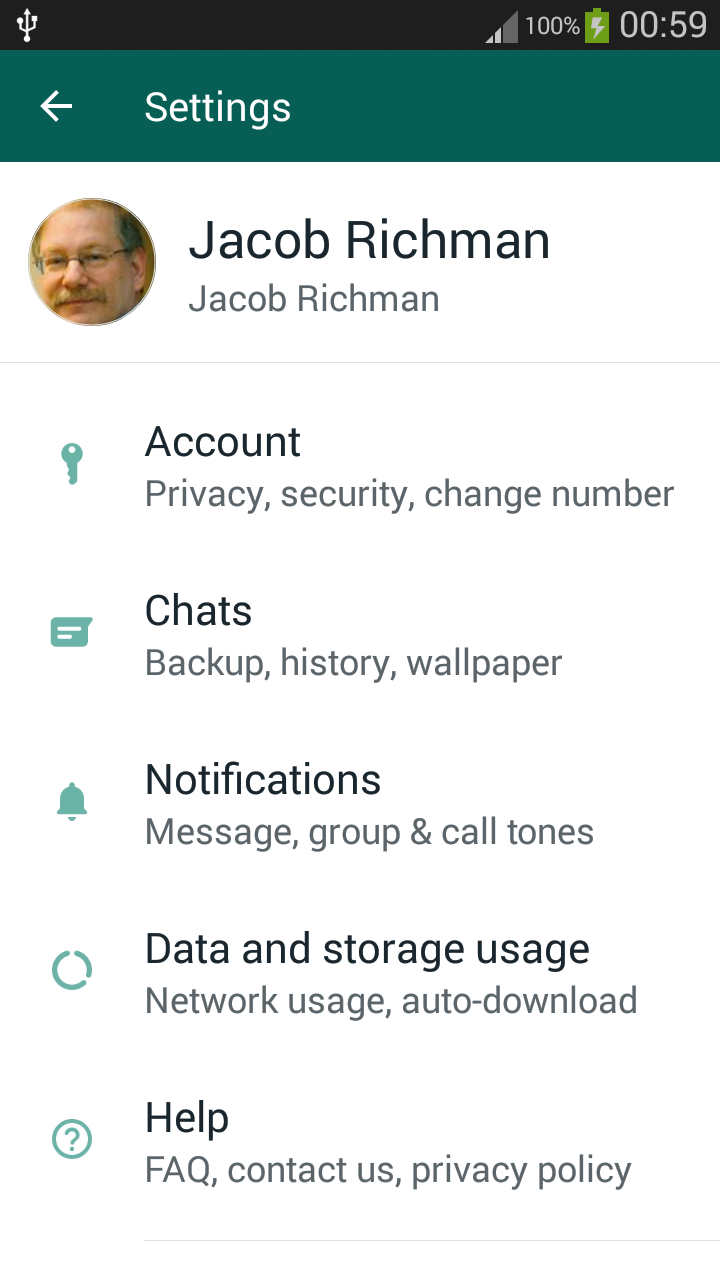 Note: New versions of Android will show additional settings. 5. Click Chats (Backup, history, wallpaper) You will see a setting screen similar to this: 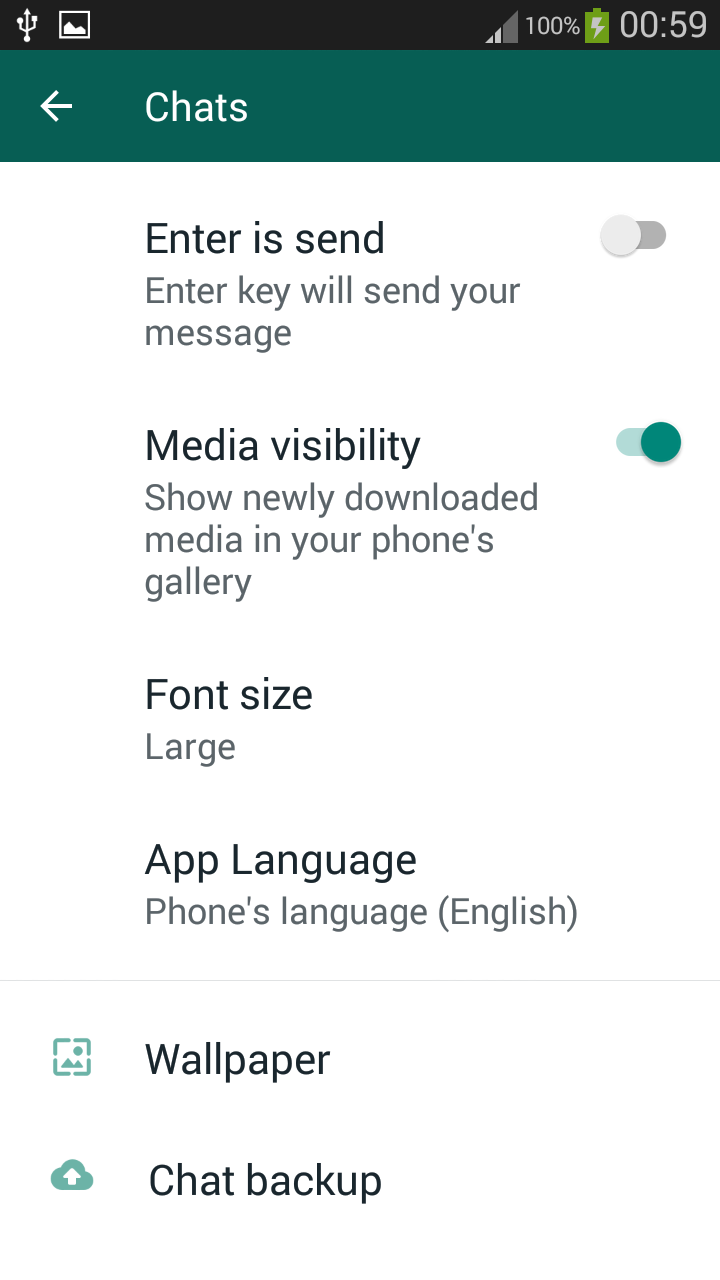 6. Click Chat Backup. You will see a setting screen similar to this: 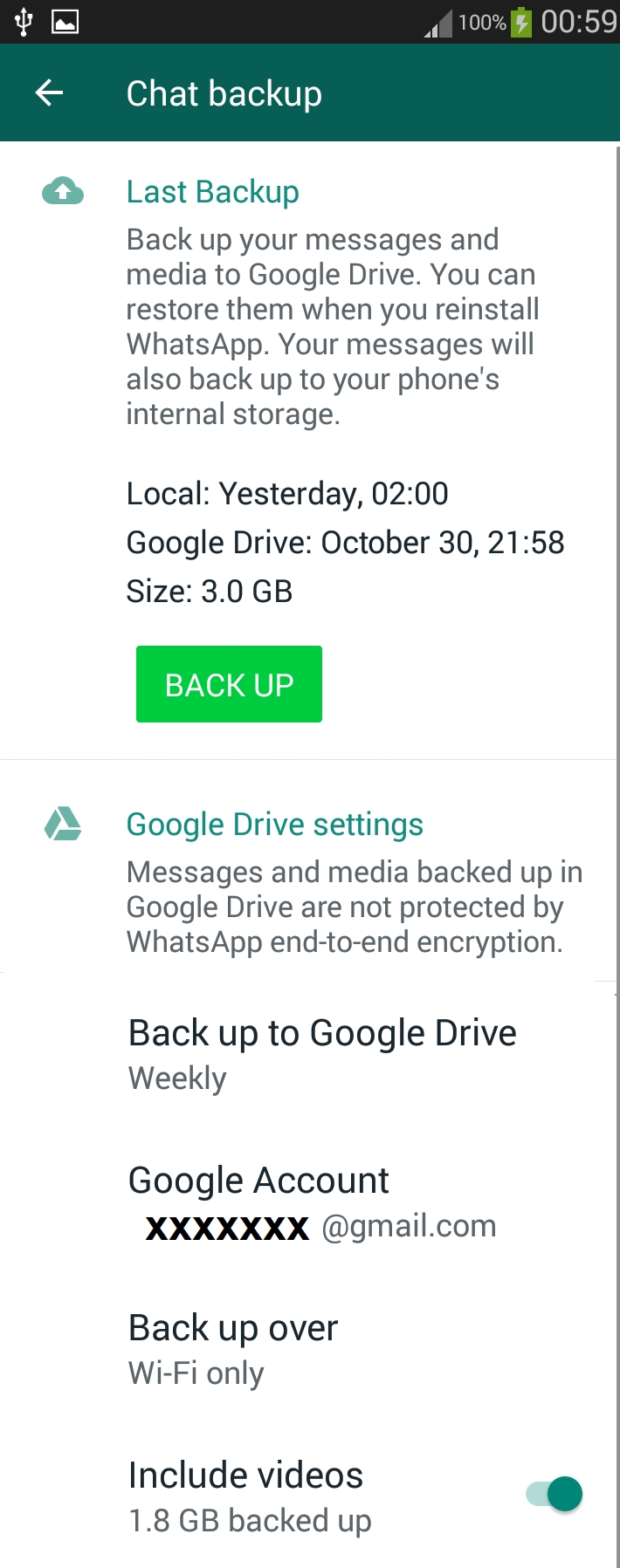 Before Clicking on the Green Back Up icon, make sure you set the backup options: - Backup to Google Driver: I recommend weekly or daily - Google Account: Enter the account you want to backup to - Back up over: Wi-Fi only (before starting the backup, turn on your phone's Wi-Fi and be near your router.) - Include videos (turn on - move button toward the right.) If this is your first time backing up including videos, expect the backup to take a while. Notes: After your first backup, the automated scheduled ones will go quicker. WhatsApp does not do a full backup to Google Drive each time it does an automatic backup. It adds only the new data each time. If you would like to see the backup file it created, login to your Google Drive at: https://drive.google.com/drive/backups You will see your backup listed. The backup name includes your phone number. Backing up your content to your computer or disk-on-key using Windows file manager1. Connect your phone to your computer via a USB cable.2. Using the computer's file manager, open the file directory of your phone. (On Windows 10, hold the Windows Logo key down and press the letter "E") 3. Click your portable device (phone) 4. Click Phone (not SD Card) If you do not see any files or directories listed check your phone's notifications. Choose: Agree / Yes. If you can not find the message, remove the cable and plug it in again. 5. Scroll down and click the WhatsApp folder On newer versions of Android the WhatsApp folder will be under the "Android" folder. 6. There will be three directories: Backups, Database, and Media. 7. You can copy all three to your computer or a disk-on-key 8. If you just want to copy photos, stickers, videos, voice, etc., click Media. Your images are located in the folder called WhatsApp Images Your videos are located in the folder called WhatsApp Video Your stickers are located in the folder called WhatsApp Stickers (The stickers files can be opened by the free paint program in Windows) Do Not remove or change any WhatsApp files on your phone. Only remove items via the WhatsApp application. Copying a single image or video to your computer using WhatsApp WebWhatsApp Web is a feature that allows you to chat from your browser (i.e., Google Chrome Browser) on your personal computer. Below are the steps to run the program:1. Turn on your phone. 2. On your computer open: https://web.whatsapp.com/ 3. If this is your first time using WhatsApp Web, the program will display a QR code - a square box with all kinds of markings and a WhatsApp symbol in the middle. 4. Start WhatsApp on your phone. 5. On the main screen choose Chat. 6. On the top right hand corner of chat click the 3 dots. 7. Click WhatsApp Web 8. On the top right hand corner click the Plus sign. 9. A scanning box will appear on the screen. 10. Aim your phone to the QR code on the computer screen. When your computer syncs with the phone (your must keep your phone on) you can now chat on your computer just like you would on your phone. When viewing a full size image or video on your computer screen, a down arrow will appear on top right of the screen. Clicking on the down arrow will allow you to save the file to your computer. |
Backing up a Chat Group
To backup a Chat Group: |
Please Click on an Icon and Share this Page Thank You!! |

|

|

|
 |
 |
Click to share by email:
How to Backup your WhatsApp Files
Training Resources
JR Training
JR Links

JR Home
© 2019 - 2025 Jacob Richman